1. Enter the key during setup or open installed Windows
You can enter the product key while installing Windows. If Windows is already installed but not activated, continue with the steps below; no reinstallation is required.
2. Open Windows Settings
Right-click the Start button on the taskbar and select Settings.
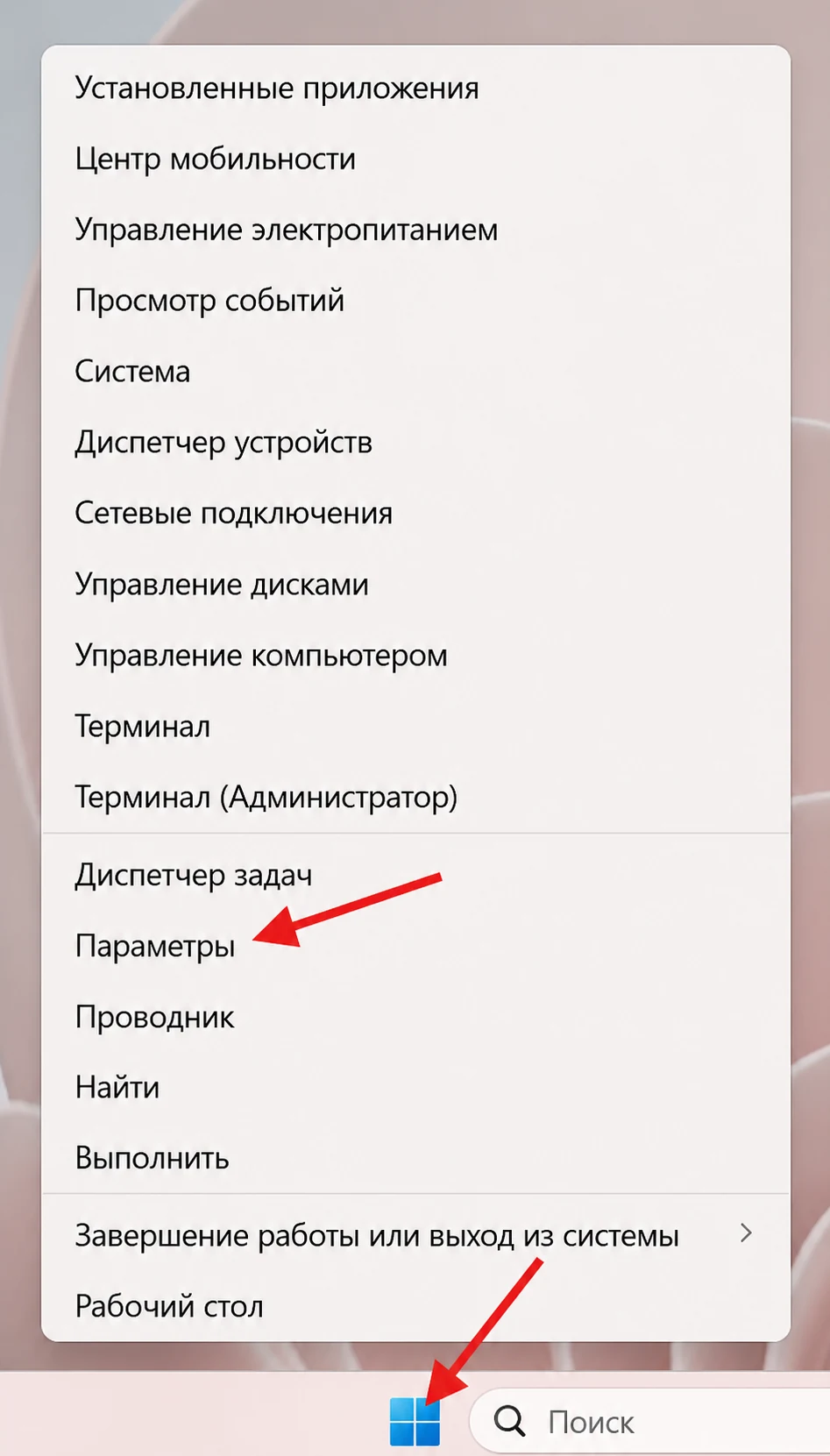
The screenshot uses a Russian Windows interface; the location of the controls is the same. 3. Open System → Activation
Select System, then open Activation to view the current licence status and activation options.
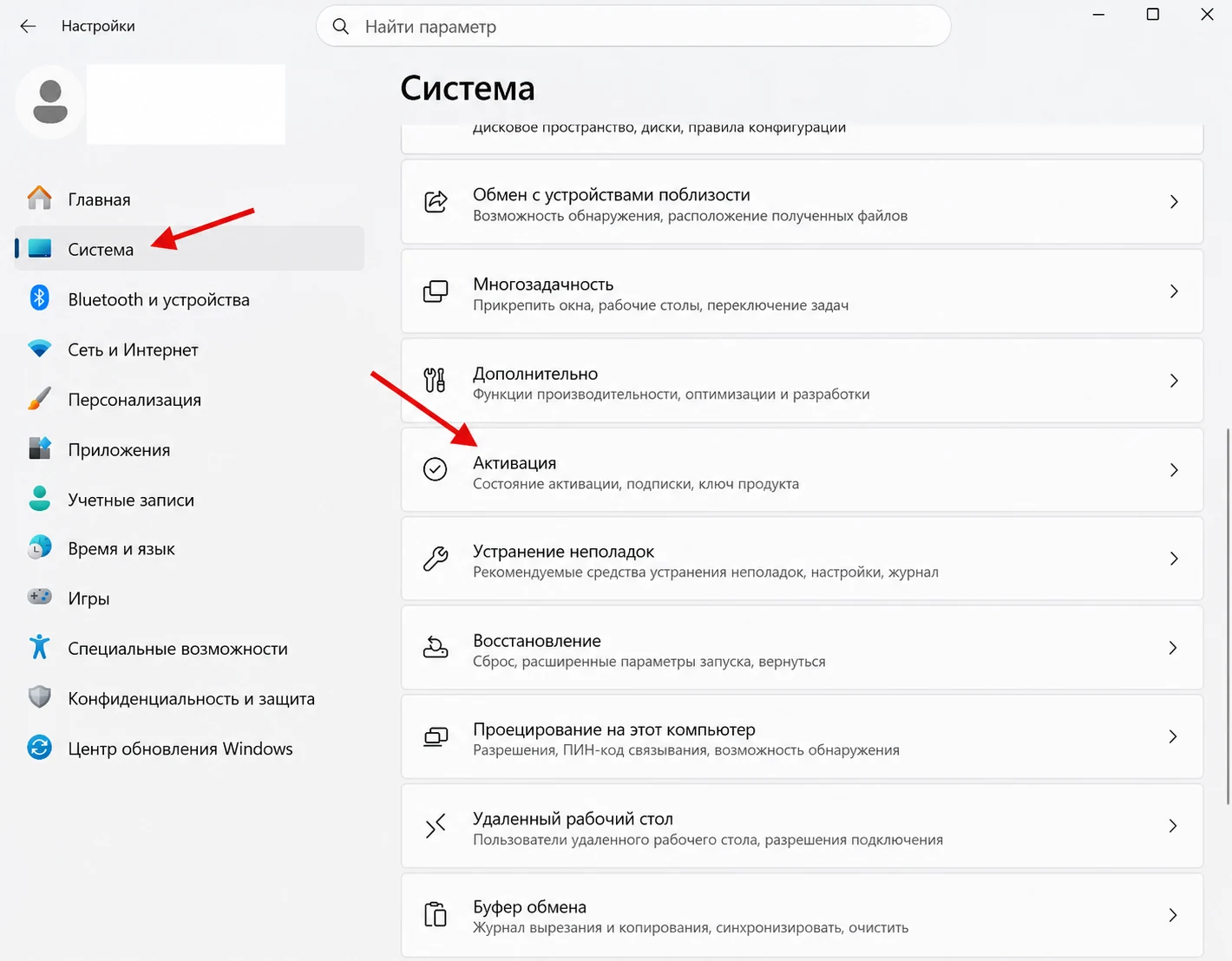
Open System and select Activation. 4. Select Change product key
Find Change product key and select Change. Windows will open the secure product-key dialog.
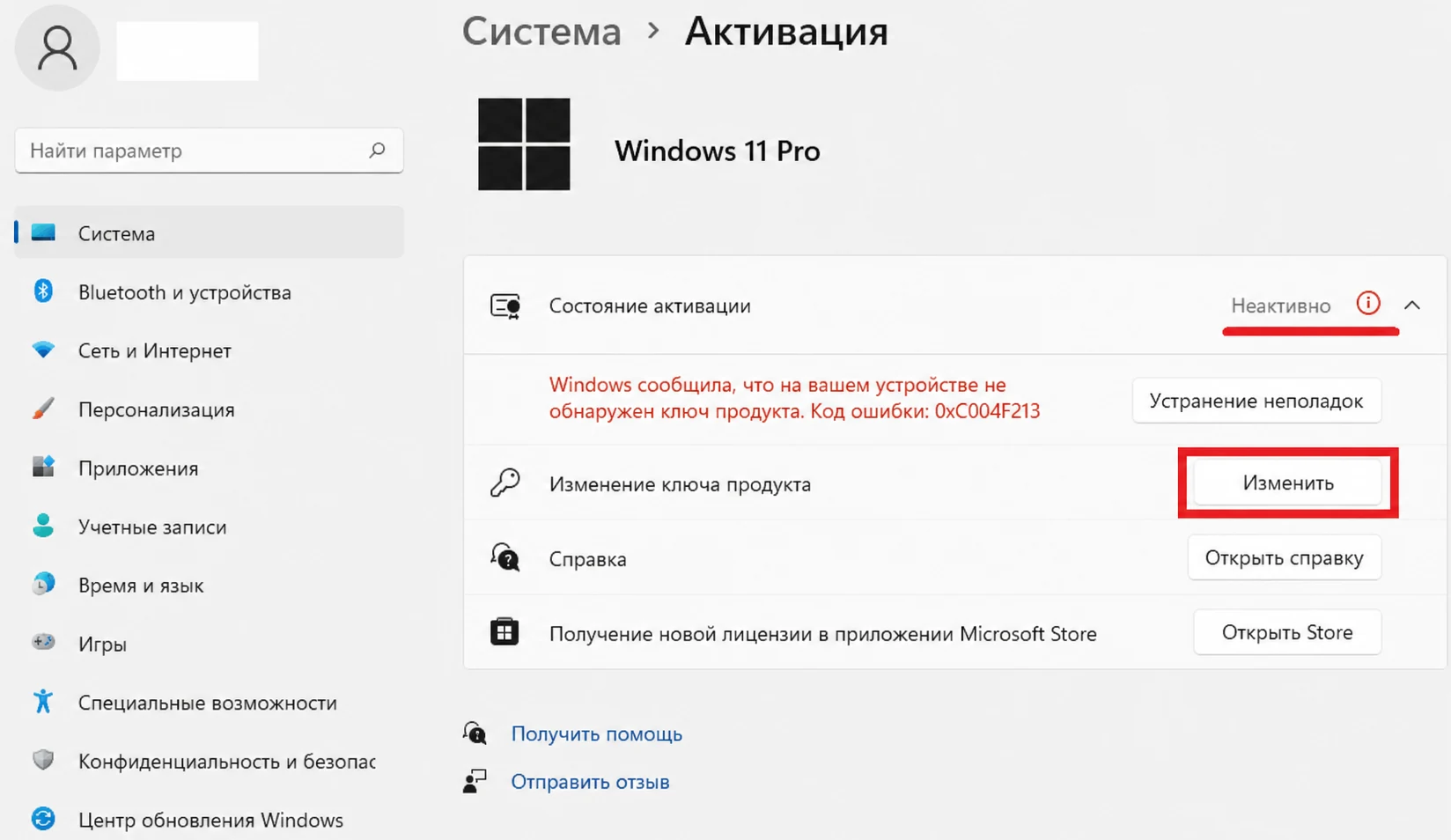
Select Change next to the product-key option. 5. Enter the key and activate online
Enter the 25-character key in the format XXXXX-XXXXX-XXXXX-XXXXX-XXXXX. Select Next, then Activate. Windows will verify the licence online.
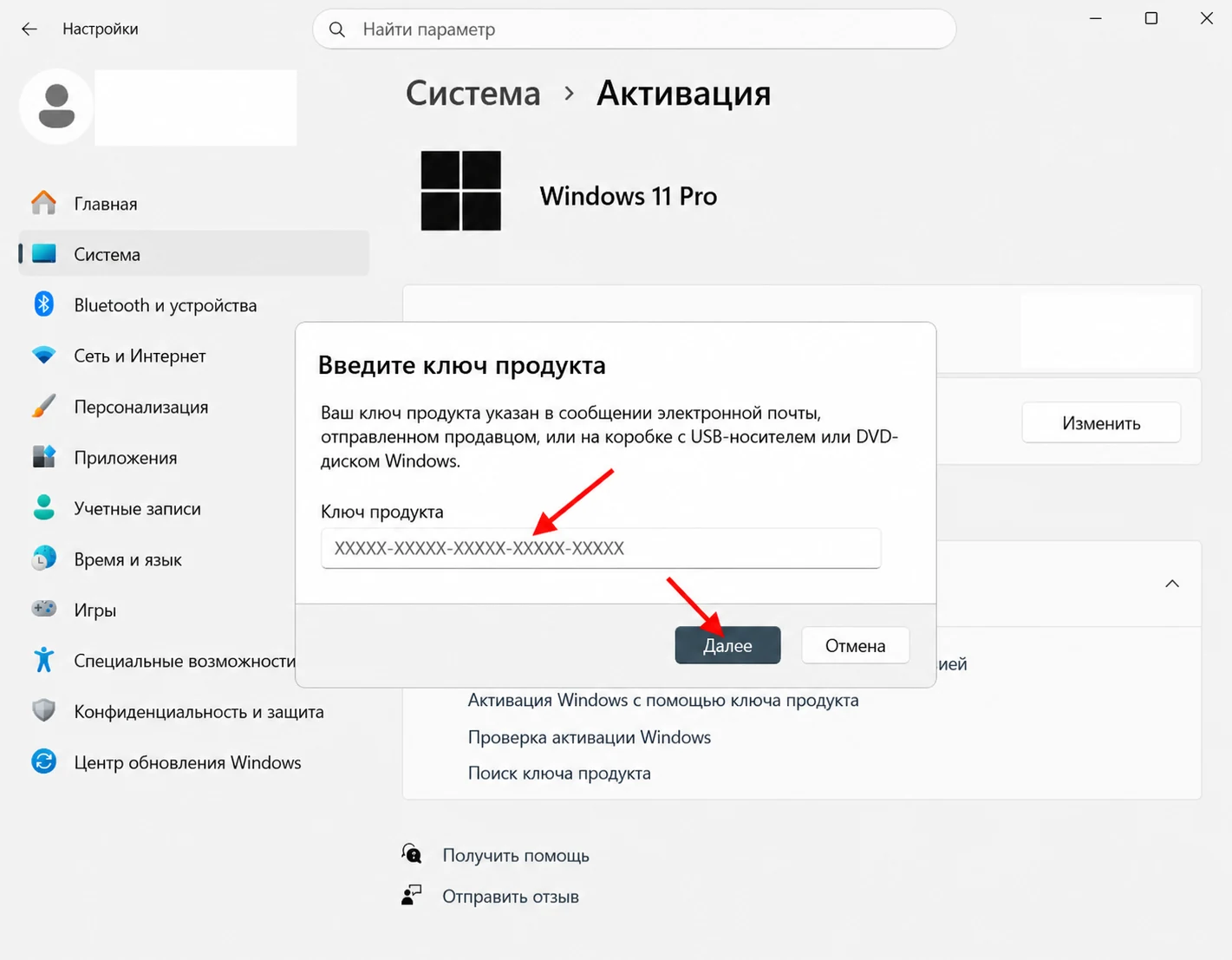
Enter your own key, select Next and confirm activation. 6. Verify the activation status
After successful verification, Windows confirms that the system is activated. Close the dialog and check that Settings → System → Activation shows Active.
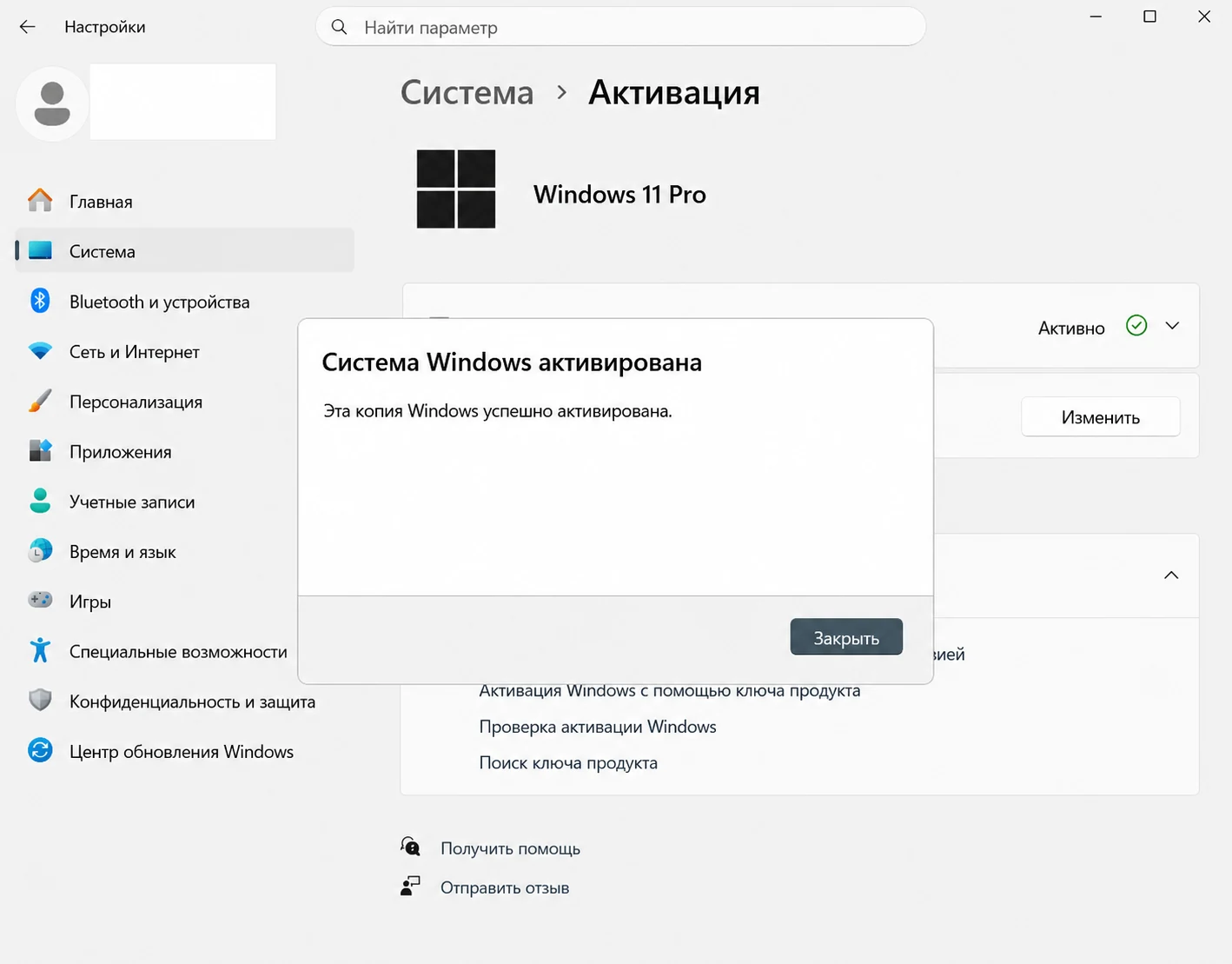
The activation page should now show an active status.
Frequently asked questions
Does this work for Windows 10?
Yes. The wording may differ slightly; open Settings → Update & Security → Activation, or Settings → System → Activation.
Do I need to reinstall Windows?
No. If the installed edition matches the key, you can activate the existing installation.
How is online activation different from phone activation?
Online activation verifies the key automatically over the internet. Phone activation uses an Installation ID and Confirmation ID for supported licence types.